Why Can’t I Use GB WhatsApp? Common Problems & Fixes
If you suddenly cannot use GB WhatsApp, the problem may not have a single cause. The application can stop working because of an incompatible Android version, an outdated APK, installation problems, network issues, corrupted app data, or changes introduced in a newer release.
Sometimes GB WhatsApp opens normally but cannot connect or complete the login process. In other cases, the application may crash immediately, become stuck on the loading screen, or stop responding after an update.
This guide explains the most common reasons why you can’t use GB WhatsApp and provides practical troubleshooting steps for each situation.
Why Can’t I Use GB WhatsApp?
There are several possible reasons GB WhatsApp may not work correctly.
The most common include an outdated application version, an incompatible Android device, an incomplete installation, insufficient storage, unstable internet access, corrupted cache, or a temporary problem with the application.
If the problem appeared immediately after updating GB WhatsApp, the new version may also have introduced compatibility changes that affect your particular device.
Before making major changes, identify exactly what is happening. A phone that cannot install the APK requires a different solution from one that installs successfully but crashes when opened.
GB WhatsApp Won’t Open
If GB WhatsApp does not open after tapping the application icon, start with a simple restart.
Close the application completely and restart your Android phone. Then try opening GB WhatsApp again.
If the application still does not open, check the available storage on your device. Very limited storage can cause applications to behave unexpectedly.
You can also check the Android app settings and clear the application’s cache. Clearing the cache removes temporary files without normally removing your account or application data.
If the problem started after installing a new version, compatibility may be the issue. Check whether the version you installed supports your Android version and device.
GB WhatsApp Keeps Crashing
Repeated crashes can occur when the application encounters a compatibility problem or corrupted temporary data.
First, restart your phone and try opening GB WhatsApp again.
Next, check whether an update is available from the source you normally use. If the current build has a known compatibility problem, a newer compatible release may resolve it.
You should also check your phone’s free storage and clear the application’s cache.
Avoid repeatedly installing APK files from different unknown websites. Doing so can make it harder to determine which version is causing the problem and may create additional security risks.
GB WhatsApp Is Not Installing
If the APK refuses to install, check whether your Android device allows installation from the source you are using.
Android versions may restrict installations from sources outside the official app store. If you intentionally use a third-party APK, you may need to grant the required installation permission to the browser or file manager handling the file.
Also make sure the APK is compatible with your device.
An incomplete or damaged download can prevent installation. If the file size appears unusually small compared with the expected package, download it again from a source you trust.
Storage is another common cause. Make sure your device has enough free space for the application and its temporary installation files.
GB WhatsApp Says App Not Installed
The message “App not installed” can appear for several reasons.
There may already be another application package with a conflicting signature on the device. This can happen when trying to install one build over another incompatible build.
The APK may also be incompatible with your Android architecture or operating system.
If you previously installed another version, review your existing installation before attempting to replace it. If you need to uninstall an older installation, make sure your important chats and media are backed up first.
Never remove an existing installation blindly if you are unsure whether your local chat data has been backed up.
GB WhatsApp Cannot Connect to the Internet
If GB WhatsApp opens but cannot connect, first determine whether your internet connection works normally in other applications.
Try switching between Wi-Fi and mobile data.
If other applications also have connection problems, restart your router or check your mobile connection.
If only GB WhatsApp is affected, restart the application and check its network permissions.
You can also temporarily disable battery-saving or data-restriction settings that may prevent the application from maintaining a network connection in the background.
GB WhatsApp Is Not Working After an Update
An update can sometimes change application requirements or introduce compatibility problems.
If GB WhatsApp worked before an update but stopped immediately afterward, check the version information and compare it with your Android version.
Restart the device after completing the update.
If the problem remains, check whether a newer compatible release is available.
Before switching versions or reinstalling the application, create a backup of important conversations and media whenever possible.
Avoid immediately downloading an older APK from an unverified source simply because the previous version worked. Older packages can contain security problems and may no longer be compatible with current Android releases.
Why Can’t I Log In to GB WhatsApp?
Login problems can have different causes.
First, check that you are entering the correct phone number and that your device can receive the required verification message or call.
Make sure your phone has a working mobile connection and that SMS or phone permissions required for verification are functioning correctly.
If verification does not arrive, avoid repeatedly requesting codes in a short period. Too many requests can create additional delays.
You should also check whether the application version is functioning correctly on your device.
If the problem specifically concerns account access or verification, using the official WhatsApp application may be the safer way to determine whether the issue is related to the account or the third-party application.
GB WhatsApp Verification Code Is Not Arriving
If you are waiting for a verification code, first confirm that your SIM card is active and can receive SMS messages.
Check the phone number and country code carefully.
Make sure your phone has a stable mobile signal and that incoming messages are not being blocked by your carrier or device settings.
Do not repeatedly request new verification codes. Wait for the available verification period and follow the instructions displayed by the application.
If verification continues to fail, consider using the official WhatsApp application to check whether the phone number itself can complete verification normally.
Is My Phone Compatible With GB WhatsApp?
Compatibility depends on the GB WhatsApp build and your Android device.
Important factors include your Android version, processor architecture, available storage, screen configuration, and security restrictions.
A version that works correctly on one Android phone may not behave the same way on another device.
If you are using a newer Android version, an older GB WhatsApp build may have compatibility problems. Likewise, a recent application release may require changes that older devices cannot support properly.
Check the application’s stated requirements before installing a new version.
GB WhatsApp Is Very Slow
Performance problems can occur when your phone has limited storage or memory.
Start by closing applications you are not using and restarting the device.
Check how much storage is available. Large amounts of media, videos, documents, and cached files can gradually consume available space.
You can also clear GB WhatsApp’s temporary cache through Android settings.
If the application becomes slow only when opening a particular conversation, that chat may contain a large number of media files.
Keeping unnecessary media under control can help reduce the amount of data the application needs to process.
GB WhatsApp Is Stuck on the Loading Screen
If the application remains on the loading screen, first check your internet connection.
Switch between Wi-Fi and mobile data and try opening the application again.
If the connection is working normally, restart your phone.
You can also clear the application’s cache and try again.
If the loading problem began after an update, check whether the installed version is compatible with your Android device.
Do not immediately clear application data because doing so can remove locally stored information. Back up important chats before taking any step that may affect application data.
GB WhatsApp Notifications Are Not Working
If messages arrive only when you open GB WhatsApp, Android may be restricting background activity.
Open your phone’s battery or app management settings and check whether GB WhatsApp is subject to aggressive battery optimization.
Also check notification permissions and make sure notifications are enabled.
Data-saving settings can also interfere with background connections.
The exact menu names depend on your Android manufacturer and operating system version.
GB WhatsApp Messages Are Delayed
Delayed messages can be caused by network problems, battery restrictions, or background activity settings.
Check whether your internet connection remains active when the screen is off.
If your Android phone automatically restricts background applications, GB WhatsApp may not maintain its connection continuously.
Review the application’s notification, battery, and mobile-data permissions.
If messages are delayed across several messaging applications, the issue is more likely to be related to your device or network rather than GB WhatsApp alone.
GB WhatsApp Features Are Missing
If a feature you previously used is no longer available, the current application version may have changed its interface or removed that option.
Third-party GB WhatsApp builds are not identical. Features and settings can vary between developers and releases.
Check the relevant GB Settings menus and review the version information.
If a tutorial refers to a setting that you cannot find, it may have been created for another version.
Should I Reinstall GB WhatsApp?
Reinstalling can resolve certain corrupted installation problems, but it should not be your first step.
Before reinstalling, make sure your important conversations and media are backed up.
A reinstall removes the current application installation and may affect locally stored data.
If the problem is only a temporary crash or cache issue, restarting the phone or clearing the cache may be enough.
Use reinstallation when simpler troubleshooting steps do not resolve the problem and you have confirmed that your important data is protected.
How to Fix GB WhatsApp When Nothing Works
If you have tried the basic troubleshooting steps and GB WhatsApp still does not work, go through the following checks:
- Restart your Android phone.
- Check your internet connection.
- Confirm that your phone has enough storage.
- Check the Android version and application compatibility.
- Review notification and app permissions.
- Clear the application’s cache.
- Check whether you are using a current compatible version.
- Back up important data before reinstalling.
- Avoid APK files from unknown or suspicious sources.
- Consider using the official WhatsApp application if account verification or security is the main issue.
These steps can help narrow down whether the problem is caused by the device, network, installation, or application itself.
Is GB WhatsApp Safe to Use?
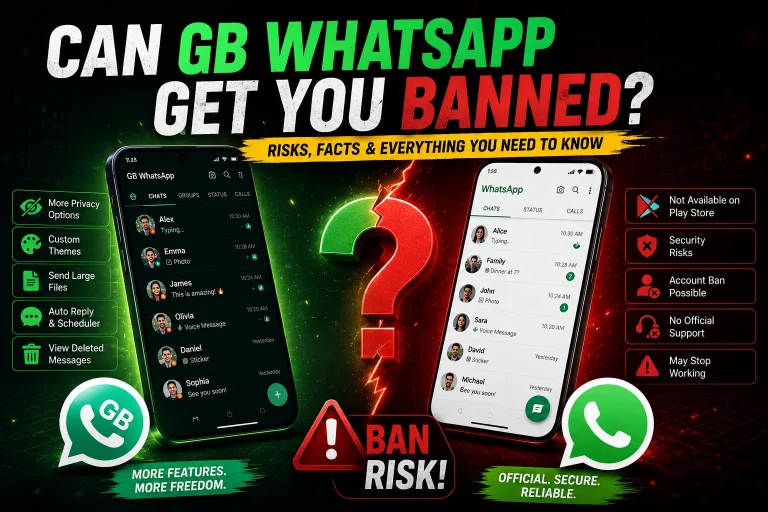
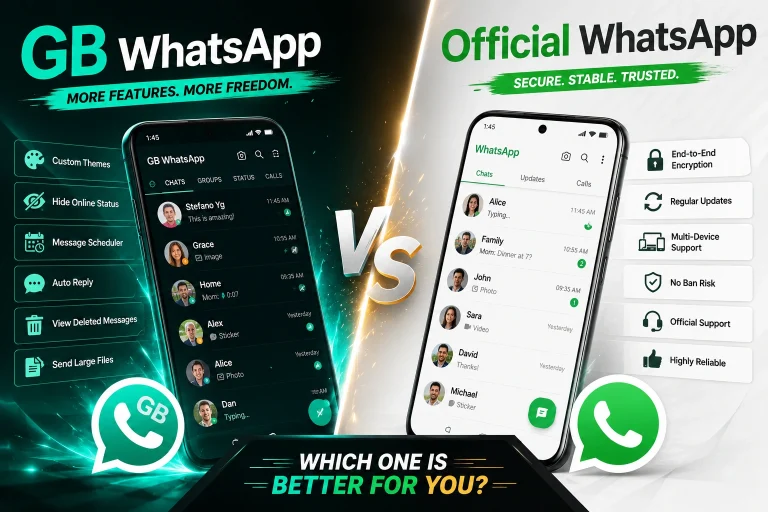
GB WhatsApp is a modified third-party application rather than an official WhatsApp release.
That distinction is important when troubleshooting account or security problems. Third-party modifications may not receive the same security support, updates, or protections as the official WhatsApp application.
Only install applications from sources you trust, review the permissions requested during installation, and avoid entering sensitive information into an application when you cannot verify its origin.
If maintaining account security is your priority, the official WhatsApp application is the safer choice.
Frequently Asked Questions
Why can’t I use GB WhatsApp?
GB WhatsApp may stop working because of an outdated version, device incompatibility, installation problems, network issues, insufficient storage, or corrupted application data.
Why does GB WhatsApp keep closing?
Repeated crashes can be caused by compatibility problems, corrupted cache files, insufficient storage, or an unstable application version.
Why won’t GB WhatsApp install?
Check your available storage, Android compatibility, installation permissions, and the integrity of the APK file.
Why is GB WhatsApp not connecting?
Check your Wi-Fi or mobile data connection, application permissions, battery restrictions, and whether other applications can access the internet normally.
Why can’t I verify my number on GB WhatsApp?
Check your phone number, country code, mobile signal, and ability to receive SMS or calls. Avoid repeatedly requesting verification codes.
Why did GB WhatsApp stop working after an update?
The new version may have compatibility problems with your Android device or may have changed certain requirements or features.
Can clearing the cache fix GB WhatsApp?
It can help with temporary problems caused by corrupted or outdated cache files. Clearing cache is generally less disruptive than clearing application data.
Should I uninstall GB WhatsApp if it is not working?
Not immediately. Try restarting the device, checking compatibility, clearing the cache, and checking your connection first. Back up important data before uninstalling.
Can I use the official WhatsApp if GB WhatsApp stops working?
Yes. If you are having persistent login, verification, or account-related problems, the official WhatsApp application can help determine whether the issue is specific to the third-party modification.
Recommended GB WhatsApp Features
If you want to check other GB WhatsApp functions and settings, these guides may also be useful:
- GB WhatsApp Anti-Ban – Understand account restrictions, compatibility concerns, and common problems associated with modified WhatsApp builds.
- GB WhatsApp Update – Check what to consider before updating and how to handle common issues after installing a newer version.
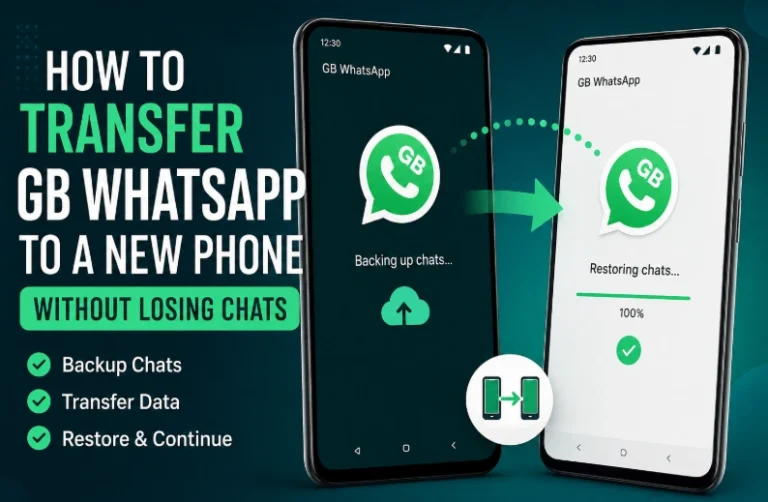
- GB WhatsApp Backup & Restore – Review backup options before reinstalling the application or moving between different versions.
Final Thoughts
When you can’t use GB WhatsApp, start by identifying the exact problem rather than immediately reinstalling the application. A simple network issue, outdated version, insufficient storage, or Android compatibility problem can often be resolved without removing the app.
If the problem involves account verification or security, be especially careful with third-party modified applications. Keep important chat data backed up, use trustworthy software sources, and consider the official WhatsApp application when you need the most reliable compatibility and security support.